
How to Set Up a Drawing Tablet for Digital Painting in 2026
Your lines drag a half-second behind your hand. Pressure barely registers no matter how hard you press. The cursor drifts to the wrong spot on the screen. If this sounds familiar, you are not bad at digital art. Almost every “I’m just not good at this” moment traces back to one cause: the tablet was never actually set up. Drivers, pressure curves, and active area mapping rarely work well using factory defaults — and nobody tells beginners that the setup step even exists. This guide walks through the entire process, from your first driver install to fine-tuning pressure inside Clip Studio Paint.
Why a Brand-New Tablet Never Feels Right by Default
Every drawing tablet ships with generic factory settings. Those defaults are built to work acceptably across every hand, every desk, and every monitor — which means they are optimised for nobody specifically. Pressure curves default to a flat, linear response. Active areas default to stretching across your entire desktop, screens and all. Pen buttons default to nothing useful at all. None of this is a flaw in the hardware. It is simply a starting point that nobody finishes.
Worse, many beginners install the wrong driver entirely. Plugging a tablet in and letting Windows or macOS install a generic input driver technically makes the pen move the cursor. However, it silently disables pressure sensitivity, tilt recognition, and custom button mapping. The tablet then behaves like an expensive mouse rather than a pressure-sensitive pen. This single mistake causes more “my tablet doesn’t work” complaints than any hardware defect ever does.
The Pressure Curve Is the Setting Almost Nobody Touches
Step-by-Step: Setting Up Your Drawing Tablet From Scratch
Follow these five steps in order the first time you connect any drawing tablet. Each one corrects a specific default that causes the “this feels wrong” sensation beginners report most often.
Install the Manufacturer’s Driver, Not the Generic One
Download the official driver directly from your tablet manufacturer’s website rather than relying on automatic OS detection. Restart your computer after installation, then confirm the driver’s control panel actually opens. If it does not open, pressure sensitivity is not active yet, regardless of what the cursor appears to be doing on screen.
Calibrate the Pressure Curve to Your Hand
Open the pressure tab in your driver settings and find the curve editor. Drag the curve slightly toward the bottom-left if lines feel too thick too quickly. Drag it toward the top-right if you must press uncomfortably hard for any thickness at all. Test with slow, varied strokes — not quick scribbles — until thin and thick feel equally reachable.
Map the Active Area to Match Your Screen
By default, many tablets map their entire surface to your entire desktop, including any second monitor. Open the mapping settings and restrict the active area to just your primary painting screen. Match the aspect ratio of your tablet surface to the aspect ratio of that screen. Skipping this step is the most common cause of a cursor that drifts off target.
Configure Pen Buttons Before You Start Painting
Most pens include two programmable side buttons sitting unused at default settings. Assign one to Undo and the other to a tool you reach for constantly, such as the eyedropper or pan tool. Setting this up before your first real session saves hundreds of trips back to the keyboard later.
Confirm Everything Inside Your Painting Software
Driver settings alone do not guarantee a good feel — your painting software has its own pressure settings layered on top. Open a fresh canvas, select a basic round brush, and draw a slow stroke from light to firm pressure. If thickness and opacity respond smoothly, your setup is complete. If not, the final adjustment happens inside the software itself.
🎨 Test your setup properly. Clip Studio Paint includes a dedicated pressure-detection tool built specifically for this final check — and three full months of PRO access are free for new users.
Try Clip Studio Paint Free →Configuring Pressure Sensitivity Inside Clip Studio Paint

Driver-level calibration handles half the job. The other half happens inside your painting software, since every program interprets raw pressure data slightly differently. Clip Studio Paint is a useful example because its pressure settings are unusually detailed, transparent, and beginner-friendly compared with most drawing software on the market.
Where to Find and Adjust the In-App Pressure Curve
Open the Sub Tool Detail panel and select Brush Size or Thickness under the Pressure section. A second pressure curve appears here, independent from your driver’s curve. Adjust this one specifically for how a given brush should respond, since a sketching pencil and an inking pen often need different curves entirely. CSP also includes a built-in pen pressure test graph, accessible from File → Preferences → Tablet, that visually confirms your input is being read correctly in real time.
Stabilization is the second setting worth adjusting immediately. Found in the same Sub Tool Detail panel, stabilization smooths out small hand tremors without removing your intentional line variation. Beginners typically benefit from a setting between three and five. Anything higher starts to noticeably delay the line behind your actual pen movement, which can feel worse than no stabilization at all.
When the Problem Isn’t Your Settings — It’s Your Tablet
Occasionally, every setting is configured correctly and the experience still feels limited. That usually points to a hardware ceiling rather than a configuration mistake. Entry-level and unbranded tablets commonly cap out around 2,048 pressure levels, which is enough to learn on but noticeably coarse for detailed shading work. Their active areas also tend to be small, and report rates are often inconsistent at faster drawing speeds.
Signs It Is Time to Upgrade, Not Reconfigure
If pressure feels stepped rather than smooth even after calibration, or if fast strokes visibly lag no matter what you adjust, the limitation is the sensor itself. This is the point where many digital artists move to a dedicated drawing-tablet brand. Huion’s tablet lineup, for instance, commonly offers up to 16,384 pressure levels, tilt recognition, and considerably larger active areas than entry-level alternatives — the kind of headroom that makes a properly calibrated setup feel genuinely smooth rather than merely workable.
✏️ Outgrowing your current tablet? Browse Huion’s pen tablet and pen display lineup to find the active area and pressure range that fits your painting style.
Shop Huion Tablets →Bonus Step: Calibrating Your Monitor’s Color
Pressure curves and active area mapping fix how a tablet feels, but they do nothing for how accurate your colors actually look. Plenty of beginners spend hours perfecting brush settings, then wonder why a finished piece looks washed out the moment it is exported, printed, or opened on a friend’s screen. That mismatch is rarely the file’s fault — it is almost always an uncalibrated monitor.
Why a Brand-New Monitor Still Shows the Wrong Colors
Every monitor ships with a generic factory color profile built for general media, not painting accuracy. Shadows can read warmer or cooler than intended, and skin tones in particular tend to drift without the display ever feeling visibly “broken.” A calibration tool measures your actual screen with a sensor, then builds a corrected color profile around exactly what it finds.
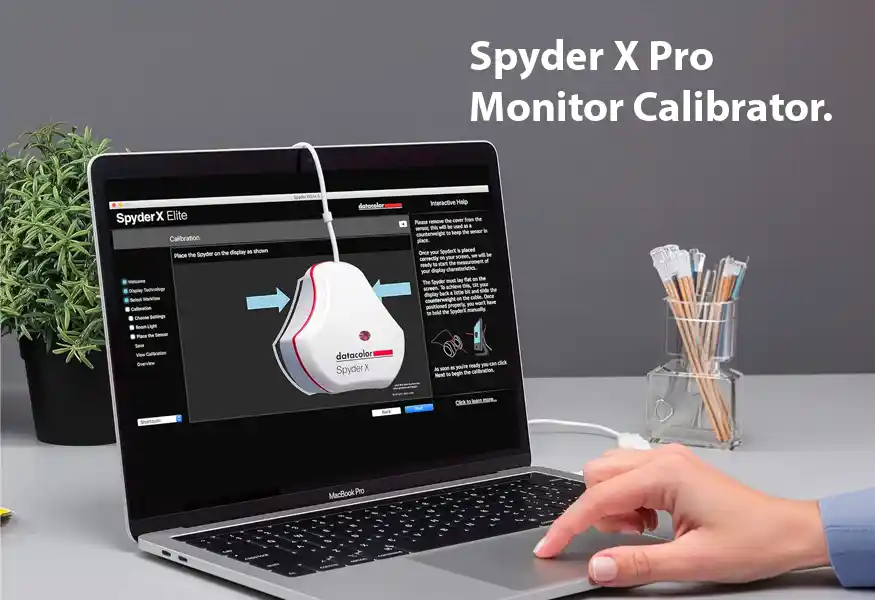
This is a practical pick for digital painters who have never calibrated a display before. Its lens-based sensor reads your screen directly and builds a corrected profile in roughly a minute, correcting shadow detail and white balance along the way. The included SpyderProof tool then shows a before-and-after comparison using your own images, so the improvement is visible rather than theoretical.
- Calibration time 1-2 minutes
- Setup difficulty Beginner-friendly
- Profile switching Automatic, room-light aware
- Comparison tool SpyderProof before/after
- Displays supported Multiple laptops & desktops
- Best for First-time calibration
A calibrated tablet and a calibrated monitor solve two separate problems, and most painting frustration traces back to one of the two. Once both are dialed in, the strokes you make and the colors you see finally match what everyone else sees too.
A Pre-Painting Setup Checklist
Run through this checklist before any serious painting session, especially after switching computers or reinstalling your operating system.
- ✦ Manufacturer driver installed and control panel opens. Confirm this first — nothing else matters if the official driver is not actually running in the background.
- ✦ Pressure curve tested with slow, varied strokes. Thin lines and thick lines should both feel reachable without straining your hand.
- ✦ Active area mapped to one screen, correct aspect ratio. The cursor should land exactly where the pen touches, every single time.
- ✦ Pen buttons assigned to genuinely useful shortcuts. Undo and a frequently used tool save the most time during real painting work.
- ✦ In-app pressure curve and stabilization adjusted separately. Driver settings and software settings are independent layers, not one combined setting.
- ✦ Drivers updated after any major OS update. Operating system updates occasionally reset or break tablet drivers without any warning.
Common Drawing Tablet Problems and How to Fix Them
These five issues account for the overwhelming majority of setup complaints beginners report online. Each has a specific, repeatable fix.
Pressure Sensitivity Is Not Registering at All
This almost always means the generic operating-system driver took over instead of the manufacturer’s driver. Uninstall any existing tablet driver completely, restart your computer, then reinstall directly from the manufacturer’s site. Reopen your painting software afterward, since most programs only detect pressure input correctly right after a fresh restart.
The Cursor Lags Noticeably Behind the Pen
Lag usually comes from either a USB power-saving setting or an outdated driver version. Disable USB selective suspend in your power settings, then check for a driver update on the manufacturer’s website. On laptops, switching from battery saver mode to a performance power plan often resolves this immediately.
Lines Come Out Jittery or Doubled
Jittery lines typically point to stabilization set too low, or to a damaged pen nib pressing unevenly. Raise in-app stabilization slightly first, since that fixes the issue for most artists. If jitter persists, replace the nib — they wear down faster than most beginners expect with regular use.
The Tablet Isn’t Detected by the Computer at All
Try a different USB port or cable before assuming the tablet itself has failed. Many “dead” tablets are actually a failing cable or a port that does not supply enough power. If a different cable and port both fail, check the manufacturer’s site for a firmware update specific to your model.
Brush Strokes Feel Scratchy or Inconsistent
Inconsistent strokes often trace back to a pressure curve that was never properly tested, rather than a hardware fault. Revisit Step 2 above and spend a full minute testing slow, deliberate strokes. Most “scratchy” complaints disappear entirely once the curve actually matches natural hand pressure.
Frequently Asked Questions — Drawing Tablet Setup
The questions below cover the setup concerns beginners run into most often once their tablet is connected and ready.
Driver and Pressure Questions
Why does my pen pressure stop working after a Windows update?
Operating system updates occasionally overwrite tablet drivers with a generic input driver automatically. This restores basic cursor movement while quietly disabling pressure sensitivity. Reinstalling the manufacturer’s driver after any major update almost always resolves it.
Checking the manufacturer’s control panel after every OS update is a useful habit. If the panel fails to open, the driver needs reinstalling before your next painting session.
How many pressure levels do I actually need as a beginner?
Roughly 2,048 levels is enough to learn fundamentals and complete basic illustrations comfortably. However, detailed shading and fine value transitions become noticeably smoother above 8,000 levels. Many current Huion tablets offer up to 16,384 levels, which leaves considerable room to grow without hitting a hardware ceiling.
For absolute beginners, the setup quality matters more than the raw number. A properly calibrated 2,048-level tablet often feels better than a poorly configured higher-spec one.
Software-Specific Setup
Do I need different pressure settings for different brushes in Clip Studio Paint?
Yes — a sketching pencil and a precise inking pen generally need different pressure curves. CSP stores these settings per sub-tool, so adjusting one brush never affects another. Spend a few minutes calibrating your three or four most-used brushes individually for the best overall feel.
Hardware and Upgrade Timing
How do I know if my tablet is the problem versus my settings?
Work through the full setup checklist first, since most “bad tablet” experiences are actually unfinished configuration. If pressure still feels stepped, or fast strokes still lag after every setting is correct, the sensor itself has reached its limit.
At that stage, upgrading to a tablet with a higher pressure-level ceiling and a larger active area — common across the Huion lineup — typically resolves what settings alone cannot fix.
Can I use the same tablet setup process for a pen display and a pen tablet?
The driver installation and pressure-curve steps are nearly identical for both types. Pen displays add one extra step: calibrating on-screen cursor alignment, since the pen draws directly on the visible canvas rather than on a separate surface.
Active area mapping matters less for pen displays, since the drawing surface and the screen are typically the same physical panel.
Ongoing Maintenance
Do I need to recalibrate my tablet every time I open my painting software?
No — driver-level settings persist between sessions automatically once configured correctly. Recalibration is only needed after a driver update, an operating system update, or switching to a new computer entirely.
In-app brush pressure settings inside software like Clip Studio Paint also save automatically per sub-tool, so a properly finished setup stays consistent indefinitely.
A Properly Set Up Tablet Changes Everything
Most frustrating first sessions with a drawing tablet come down to five fixable settings — not talent, and not always the hardware. Finish the driver, the pressure curve, and the active area first. Then make sure your painting software is configured to match.